Risky Pirates Controls
PC and mobile inputs for sailing, fighting, and redeeming codes without fighting the UI.
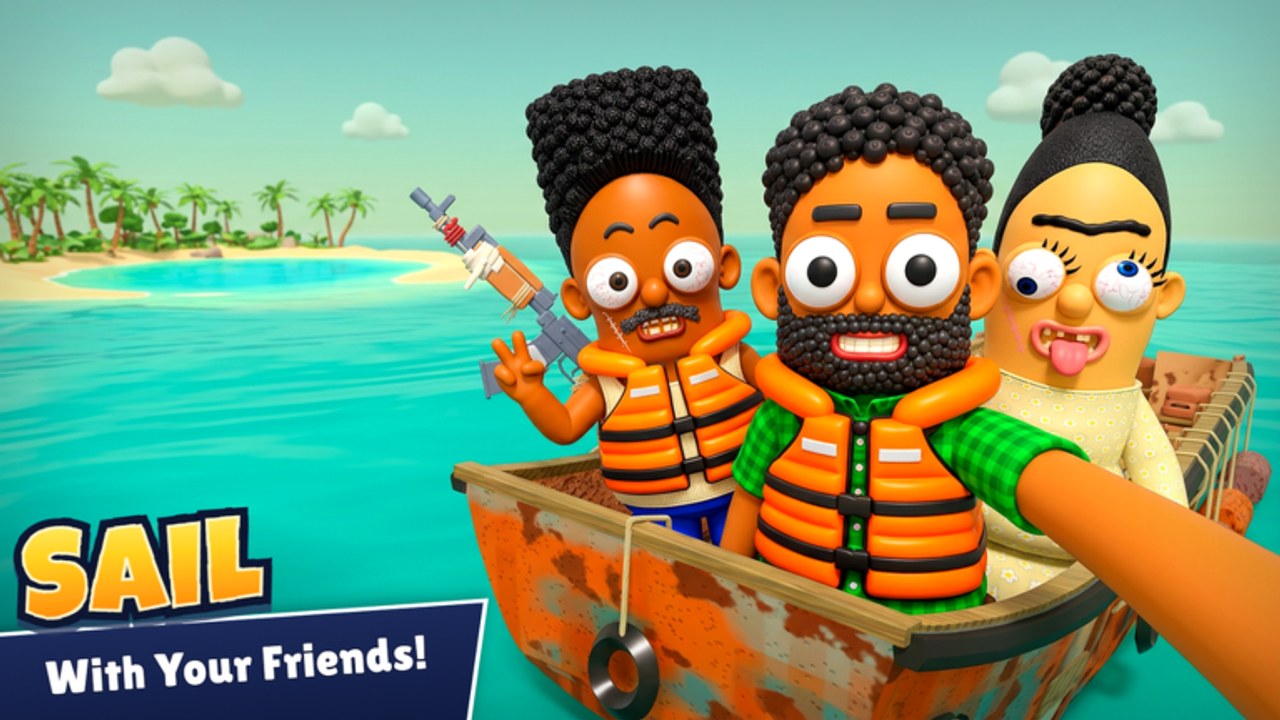
You cannot outrun a raider if you are still fighting the camera. This Controls page covers practical PC and mobile inputs for Risky Pirates! on Roblox—movement, sailing the skiff, deck combat, camera habits—and the Shop → Codes path for promos. Exact keybinds can vary with your Roblox settings and device, so treat game-specific notes as the voyage layer on top of standard Roblox defaults. Use this with the Tools Hub checklists and Getting Started.
Roblox defaults you will use constantly
PC (keyboard & mouse)
| Action | Typical default |
|---|---|
| Move | WASD |
| Jump | Space |
| Camera | Mouse movement |
| Zoom | Mouse wheel |
| Interact / use | E (common Roblox interact) |
| Backpack / hotbar | 1–9 / ` or \ depending on layout |
| Shift lock (toggle) | Shift (if enabled) |
| Chat | / or Enter |
| Roblox menu | Esc |
Enable Shift Lock in Roblox settings if you want tighter combat aiming on deck. Rebind in Roblox Settings → Keyboard & Mouse if WASD conflicts with muscle memory from other games.
Mobile
| Action | Typical control |
|---|---|
| Move | Left virtual joystick |
| Camera | Drag on the right side of the screen |
| Jump | Jump button |
| Interact | On-screen Interact / proximity button when near objects |
| Hotbar | Touch slots along the bottom/edge |
| Menu | Roblox hamburger / account menu |
On mobile, keep thumbs clear of the sail/throttle UI when storms hit—accidental camera drags mid-helm are a top cause of mine hits. Consider a clip-on grip or simply shorter sessions if your device overheats during long voyages.
Sailing and skiff control
Once you claim the helm of your skiff:
- Board / sit at the helm using the on-screen interact prompt (PC: face the wheel/seat and press interact).
- Throttle / sails — use the on-screen boat controls to add speed; do not floor it in mine fields.
- Steer — turn with movement input or boat-specific steer UI while seated.
- Watch fuel — gauges matter more than raw speed; empty tanks ignore how good your engine tier is (upgrades).
- Leave helm — stand when you need to repair, loot, or man guns; assign a friend to take wheel in crew play.
Crew tip: the captain stays on helm during chases; gunners and repair stay unbound from the seat. Role confusion is a controls problem as much as a strategy problem (Players).
Dock and build UI
At dock you will open build/upgrade panels to install engines, guns, and hull upgrades. Navigate with mouse clicks on PC or tap on mobile. Confirm purchases against your boat build plan before committing Bounty. Full systems explanation lives in Boat Building.
Combat controls
- Equip gun from hotbar.
- Aim with camera (mouse or mobile drag).
- Fire with left mouse button / mobile fire button.
- Reload when your UI prompts—do not start a cargo hijack on an empty mag (raiding guide).
- Repair under fire — switch off gun, pull repair/metal sheet tool or item, apply, then re-equip. Practice the swap in calm water.
Sharks and wildlife may trigger struggle or shake prompts—watch for on-screen button cues (often mash interact or a shown key). Scripts advertise “Shake Off” and “Croc Struggle” helpers because these prompts are easy to miss while panicking; learn the prompt location instead of relying on automation (Scripts).
Camera habits that save hulls
- Zoom out slightly while helming to spot mines and wake trails early (hazards).
- First-person can help aiming guns; third-person helps steering through debris.
- On PC, small mouse sensitivity tweaks beat huge flicks when tracking raiders.
- On mobile, pause camera drags when tapping interact on sell pads so you do not spin the boat.
Shop and Codes UI (game-specific)
Redeeming promos is a UI skill:
- Launch Risky Pirates!.
- Open Shop from the left-side / main HUD shop button.
- Select the Codes tab.
- Tap the text field; on mobile, allow the keyboard to open fully before pasting.
- Enter codes exactly: 67, LOOKATME, 100K while active.
- Confirm Redeem and verify Bounty increased.
If paste fails on mobile, type carefully—codes are case-sensitive. Full reward tables stay on the Codes Hub.
Shop tabs also sell ammo, meals, repairs, metal sheets, and fuel. Use the Tools Hub restock order: survivability first, cosmetics last.
Accessibility and quality-of-life
- Lower graphics if storms tank your frame rate—dropped frames feel like bad steering.
- Increase UI scale on mobile if Shop buttons are easy to miss.
- Mute music temporarily if you need to hear crew callouts (device-level or Roblox volume).
- Controllers: Roblox maps gamepad sticks to move/camera; verify interact binding before a live raid.
Practice drill (five minutes at dock)
- Sit helm → throttle up/down → steer a circle → exit seat.
- Equip gun → aim at open water → dry-fire safe zone → reload.
- Open Shop → Codes tab → close without error.
- Open upgrade panel → review engine/gun slots → close without impulse buys.
- Run the pre-voyage checklist out loud.
Mastery is boring reps, not a viral clip. When controls are automatic, your brain is free for raiders and the Kraken.
Related pages
- Tools Hub — fuel/ammo/repair checklists.
- Getting Started — put controls into the day-one loop.
- Boat Building — what the upgrade UI is changing on the skiff.
- Codes — what to type into the Codes tab.
Frequently Asked Questions
Quick answers to the most common Risky Pirates questions.
What are the basic PC controls for Risky Pirates?
Use WASD to move, mouse for camera, interact (often E) for seats and world objects, hotbar keys for guns and items, and on-screen boat UI while at the helm.
How do I redeem codes on mobile?
Open Shop, go to the Codes tab, tap the field, enter the code exactly, and redeem. Allow the keyboard to open fully before pasting.
Why do I keep missing struggle prompts?
Watch for on-screen mash/interact cues during shark or wildlife grabs. Practice looking at the prompt area instead of only the enemy model.
Should I use first-person or third-person?
Third-person helps helming and spotting mines; first-person can help gun aim. Switch based on whether you are steering or shooting.